3 min read
TAKE A BREAK
How to Back Up an iPhone: iCloud vs Mac Compared
Updated: 11/8/2026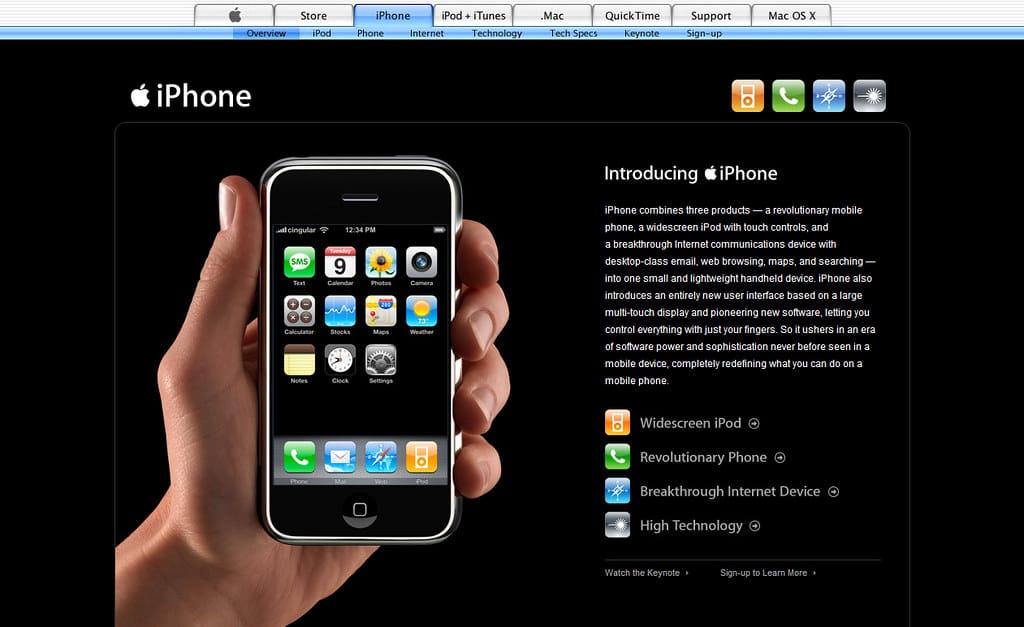
The new Apple iPhone Photo by Victor Svensson · CC BY 2.0
To back up an iPhone, you have two main routes: iCloud Backup, which sends your data to Apple's servers over Wi-Fi, or a local backup to a Mac using Finder, which saves a copy to your computer. Both work. They differ on storage, speed, and privacy, and those three factors should decide which one you use. Below, we compare them and finish with a verdict for four common setups.
How to Back Up an iPhone to iCloud
iCloud Backup runs on its own once it is set up. Apple says it starts daily when your iPhone is connected to power, locked, and on Wi-Fi. You can also start one yourself:
- Open Settings and tap your name at the top.
- Tap iCloud, then iCloud Backup.
- Turn on iCloud Backup.
- Tap Back Up Now, and stay on Wi-Fi with the phone plugged in until it finishes.
How to Back Up an iPhone to a Mac
On a Mac, Finder handles iPhone backups. You need a reasonably recent version of macOS.
- Connect your iPhone with a cable and unlock it. If prompted, trust the computer.
- Open Finder and select your iPhone in the sidebar.
- In the General section, choose Back up all of the data on your iPhone to this Mac.
- Check Encrypt local backup and set a password you will remember. We explain why below.
- Click Back Up Now.
iCloud vs Mac: Side-by-Side Comparison
| Factor | iCloud Backup | Mac backup (Finder) |
|---|---|---|
| Where it lives | Apple's servers | Your Mac's drive |
| Trigger | Automatic when conditions are met, or Back Up Now | Manual, when you connect and click Back Up Now |
| Network | Wi-Fi required | Cable, no Wi-Fi needed |
| Storage limit | Free 5 GB tier, then paid plans | Free space on your drive |
| Speed | Depends on your Wi-Fi upload speed | Depends on cable and drive; no official benchmark |
| Default encryption | Encrypted by Apple | Unencrypted unless you turn on encryption |
| Left out | Photos if iCloud Photos is on; notes and messages already synced to iCloud | iTunes Store, App Store, and Apple Books content |
The table is a starting point. The sections below show how each factor plays out in practice.
Space: Run the Numbers Before You Decide
iCloud Backup shows how much iCloud storage your backups use and how much is left. It also shows the size of the last backup, the next backup, and the apps included. Use that screen as your starting point. The number you need is the size of the next backup, not the total storage on your phone.
The biggest variable is photos. When iCloud Photos is on, your photos and videos are not part of the iCloud Backup, because they already live in your iCloud library. That can make the backup much smaller than the storage your phone reports.
Here is a rough example, not a measurement. Say your iPhone has 256 GB in use, and 180 GB of that is photos and videos. With iCloud Photos on, those 180 GB sit in your iCloud library, and the backup covers the rest of the phone, minus items that already sync to iCloud. The backup could be far smaller than 256 GB, but your iCloud plan still has to hold the photo library. Add both numbers together before you pick a plan.
A Mac backup has no iCloud limit. The trade-off is that it uses space on your computer's drive, so check free space before you start. It also skips some store content. Apple says purchases from the iTunes Store, App Store, and Apple Books are not included, so you will need to download them again from your account.
Speed: What We Can Say (and What We Can't)
Apple does not publish a speed benchmark for either method. An iCloud backup depends on your Wi-Fi upload speed. A Mac backup depends on your cable and drive. Most speed claims online are anecdotal. Intego says a full restore from a Mac can take half an hour or less, while an iCloud restore can take several hours or more. That is one vendor's claim, so treat it as something to test, not a rule.
A Simple Test You Can Run
- Back up your iPhone to iCloud over Wi-Fi and note the start time, end time, and backup size.
- Connect the same iPhone to your Mac by cable and run a full Finder backup. Note the same details.
- Restore a test device or spare device from each backup if you can, and time the process.
Run the first full backup of each type to get a fair comparison, since later backups copy only what changed.
Privacy: Three Levels, Not Two
Most guides treat privacy as a yes-or-no question. In practice, there are three options, and they protect your data differently.
Standard iCloud Backup
Apple encrypts iCloud Backup, but under standard protection Apple holds the keys. That is a reasonable default for many people, but it is the least private of the three options.
Advanced Data Protection
Advanced Data Protection (ADP) turns on end-to-end encryption for iCloud Backup and nine other data categories, including Photos and Notes. Apple's security overview explains that when ADP is on, iCloud Backup and everything inside it is end-to-end encrypted. Before you turn it on, Apple walks you through setting up a recovery contact or recovery key. Store that key somewhere safe. With end-to-end encryption, losing both your trusted devices and your recovery method can lock you out of your data.
Encrypted Local Backup on a Mac
A Mac backup is not encrypted by default. Apple notes that an encrypted local backup can include saved passwords, Wi-Fi settings, Health data, and call history, which is why it is worth turning on. Keep the password in a password manager. If you lose it, you cannot restore that backup.
Sync Is Not a Backup, Especially on a Mac
If you use a Mac, do not assume iCloud covers it. iCloud syncs files and photos across your devices, but it does not back up your Mac. Backblaze makes the point that deleting a photo on your Mac can remove it from your iPhone too. Syncing copies your mistakes as well as your files. A Mac user with iCloud still needs a separate backup of the computer itself, such as Time Machine to an external drive.
Which Method Should You Choose? Verdicts by Profile
Single iPhone, No Mac
Use iCloud Backup. It is automatic, needs no computer, and protects you if your phone is lost, damaged, or replaced. If your photo library is small, the free tier may be enough. For most people, a paid plan is the real cost, so check the current price in Settings before you upgrade.
Mac Owner With a Small iCloud Plan
Make Finder your main backup. It costs nothing beyond the drive you already own, and you choose when it runs. Keep iCloud Backup on for the times you are away from your Mac. If space is tight, check whether iCloud Photos is taking most of your plan, because that is usually the cause. If you are still choosing a Mac for this setup, compare your options in Mac mini vs MacBook Air: Which Is Better for Programming?.
Privacy-Focused User
Use an encrypted local backup on your Mac as your primary copy. If you also want a cloud copy, turn on Advanced Data Protection after you have stored your recovery key safely. In our view, standard iCloud Backup is the weakest choice of the three for privacy.
Family With a Large Photo Library
Plan your iCloud storage around the full photo library, not the backup alone. Photos are excluded from the iCloud Backup when iCloud Photos is on, but they still count against your plan. If the library is too large for a practical plan, a Mac backup can cover the rest of the phone's data while the library stays in iCloud for access across devices.
Frequently Asked Questions
Can I Back Up My iPhone Without Wi-Fi?
Yes, with a Mac. A Finder backup runs over a cable and does not need Wi-Fi. iCloud Backup needs a Wi-Fi connection.
Does iCloud Back Up My Photos?
Not when iCloud Photos is on. Your photos and videos are already stored in your iCloud library, so they are excluded from the backup.
Is the Free 5 GB Enough?
For most iPhone users, probably not. The free 5 GB is shared across iCloud Photos, iCloud Backup, iCloud Drive, Mail, and other apps, so your backup competes with everything else.
Is My iCloud Backup Encrypted?
Yes. Apple encrypts iCloud Backup, and Advanced Data Protection adds end-to-end encryption on top of that.
Should I Back Up to Both iCloud and a Mac?
For most people, yes. iCloud gives you automatic protection, and a Mac backup gives you a full local copy you can restore without an internet connection.
Takeaway
Choose iCloud if you want automatic backups with no computer involved. Choose a Mac if you want control over timing, no storage fees, and a local copy you can encrypt yourself. If the data matters to you, use both. If you want to see what else your iPhone can do with its newer features, read Apple Intelligence Is Here: How AI Is Transforming the iPhone, Mac & Business in 2025.