3 min read
TAKE A BREAK
Mac mini RAM for Programming: Is 16GB Enough?
Updated: 11/25/2026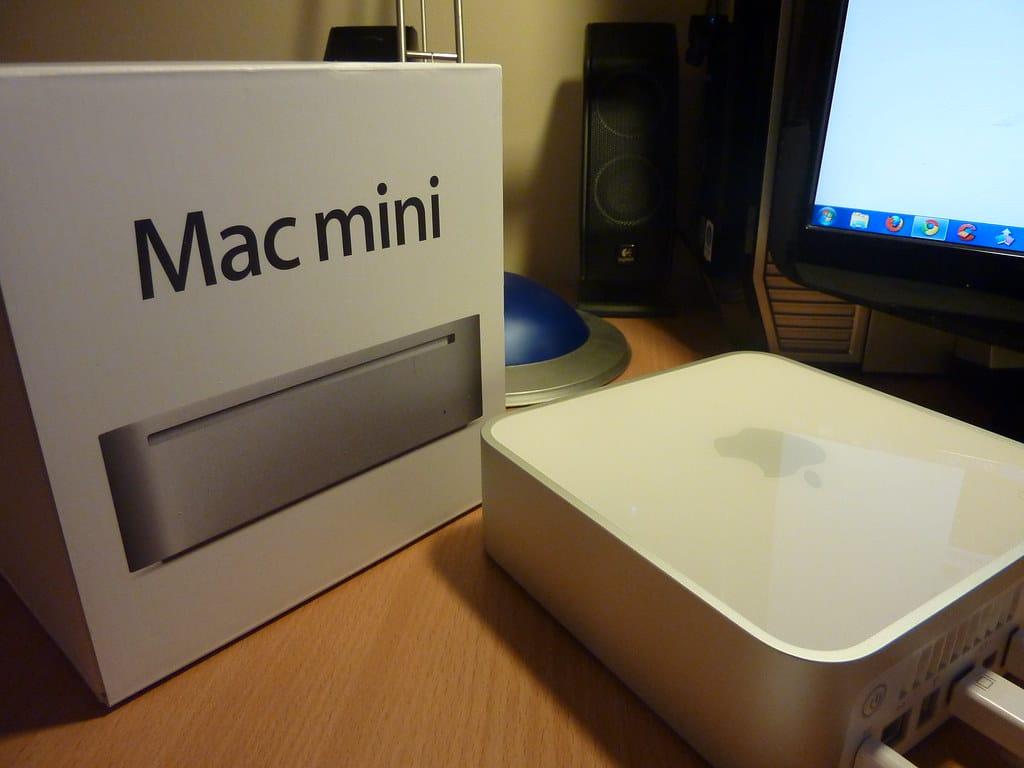
mac mini Photo by Sean MacEntee · CC BY 2.0
If you're weighing Mac mini RAM for programming, the short answer is this: 16GB is enough for light, single-editor work, but it gets tight fast once Docker, a heavy IDE, and a browser full of tabs all run at once. Buy 16GB if your normal day is one editor, a browser, and little or no containerized work. Buy 24GB if you run Docker daily, use local AI models, or see memory pressure turn yellow during regular work.
Is 16GB enough for programming on a Mac mini?
For some developers, yes. Apple's Mac mini specs list 16GB of unified memory as the base configuration, with 24GB and 32GB available as configurable options. Unified memory is shared by the CPU, GPU, and everything you run, so the real question is less about your language and more about what stays open while you work.
Light work usually fits comfortably: an editor, a dev server, a handful of browser tabs, and maybe a small database. Pressure builds when you stack several containers, a large Xcode or Android Studio project, local models, or a virtual machine on the same machine.
Mac mini RAM for programming by workload
Use this table as a starting point. The ratings are our judgment based on how these tools typically use memory, not benchmark results, so test your own stack before you commit.
| Your daily setup | 16GB | 24GB | 32GB or more |
|---|---|---|---|
| Scripting, one editor, light browsing | Comfortable | More than most need | More than most need |
| Web development: IDE, dev server, browser, one or two containers | Workable, watch pressure | Comfortable | Extra headroom |
| Full-stack with Docker: app, database, cache, queue | Tight | Good fit | Good for heavy stacks |
| Local AI models alongside your IDE | Small models only | Mid-size models | Larger models |
| Xcode, Android emulators, or virtual machines | Tight | Workable | Strong choice |
Why Docker is the swing factor
Docker Desktop's install guide for Mac lists at least 4GB of RAM to run the app. Treat that as a floor for Docker itself, not a sizing guide for your project. Your containers draw memory on top of that, and Docker runs its Linux environment inside the same unified memory pool as everything else on the Mac.
A common full-stack setup might include an app server, Postgres, Redis, and a background worker. Add an IDE and a browser to that, and 16GB starts to run out of room for many developers. This is usually where swap shows up first.
One developer who wrote about returning a 16GB M4 Mac mini for the 24GB model described frequent swap use and slowdowns during Vite dev server rebuilds. It's one experience, not a benchmark, but it shows the pattern to watch for.
Local AI models change the math
Local models are the biggest reason to move past 16GB. A model loaded through a tool such as Ollama uses memory on top of your editor and containers, and larger models need more of it. If local models are central to your workflow, our view is that 24GB is the practical floor and 32GB is the safer choice.
If your AI tools call remote services instead, the local memory load is much lighter, and the choice between 16GB and 24GB depends mostly on the rest of your stack.
How to tell if your Mac mini needs more RAM
Apple's Activity Monitor guide explains memory pressure with three colors:
- Green: Your Mac is using its RAM efficiently.
- Yellow: Your Mac might eventually need more RAM.
- Red: Your Mac needs more RAM.
Watch Swap Used too. Apple explains that when memory nears its limit, inactive apps are compressed, and Swap Used shows space on the startup disk that's used to move data to and from RAM. A little swap on its own isn't a crisis. The signal to watch is swap that keeps climbing during your normal workday.
Our rule of thumb: if memory pressure stays yellow during regular work, or swap keeps growing, plan on 24GB.
A simple test to run before you buy or upgrade
You can run this on a Mac you already own before you decide.
- Open the apps you use on a typical workday: your IDE, your browser with your usual tabs, and the containers or dev servers you run.
- Open Activity Monitor, go to the Memory tab, and note the memory pressure color.
- Work normally for an hour, then check the graph again and note the Swap Used figure.
- Time one build or test run you do regularly, and write down the result.
- Repeat the same steps on a similar project later in the week. If pressure is yellow or red for long stretches, or swap keeps growing, you're a candidate for 24GB.
Build times also depend on CPU and storage, so compare the same project on the same machine before and after any change.
Is the RAM upgrade worth the cost?
In its coverage of the new Mac minis, The Register reports that the M6 model starts at $899 and that stepping up to 32GB costs $400. That's a meaningful difference, so the math depends on how much slowdowns cost you.
Here's how we'd weigh it. If swap slows your builds several times a day, the lost time adds up over the years you'll use the machine. If your work stays in the comfortable range, extra RAM is money you won't use. Apple's memory compression helps 16GB go further than the number suggests, but compression has limits. It can't create headroom for a container stack that's already maxed out.
You can't add RAM later
The memory in a Mac mini is part of the Apple silicon design, so you can't add more after you buy. The practical rule is simple: the memory you choose at checkout is the memory you keep. Our opinion is to buy for the workload you expect in two to three years, not only the one you have today.
Who should buy 16GB and who should buy 24GB
- Choose 16GB if you mostly write code in one editor, use Docker lightly or not at all, and your memory pressure stays green during a normal day.
- Choose 24GB if you run Docker daily with several services, use local AI models, build iOS or Android apps, or want room to grow.
- Consider 32GB or more if you run virtual machines, large Xcode or Android projects alongside containers, or larger local models.
If you're still choosing between a desktop and a laptop, our Mac mini vs MacBook Air comparison for programming covers portability and the trade-offs. For a broader checklist, read Is the Mac Mini Good for Coding? A Developer's Checklist.
Frequently asked questions
Is 16GB enough for Docker on a Mac mini?
For one or two light services alongside an editor, often yes. Once you run several services with an IDE and a browser, 24GB is the safer pick.
Can you upgrade RAM on a Mac mini after you buy it?
No. Memory is part of the Apple silicon design, so the amount you choose at checkout is the amount you keep.
Is yellow memory pressure bad?
It's a warning, not an emergency. Apple says yellow means your Mac might eventually need more RAM. If it stays yellow during normal work, that's your signal to consider an upgrade.
Is 24GB worth it for programming?
For daily Docker use, local models, or mobile builds, often yes. For light web work, 16GB may be all you need.
Takeaway
Mac mini RAM for programming comes down to your daily stack. Start with 16GB only if your work stays light. If Docker, local models, or large mobile projects are part of your week, or if memory pressure stays yellow during normal work, 24GB is the practical choice. Run the simple test above before you decide, and let your own numbers have the final word.