3 min read
TAKE A BREAK
Nano Banana 2 Gemini Image Generator: A Step-by-Step Guide
Updated: 11/5/2026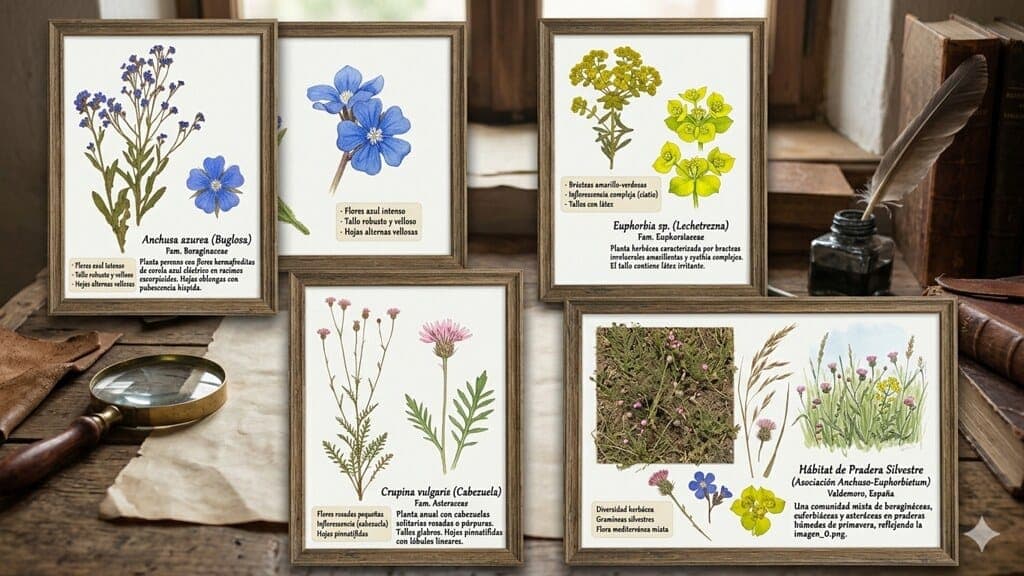
Desglose de la fotografía anterior por Google Gemini Photo by Martín Vicente, M. · Public domain
Want to use the Nano Banana 2 Gemini image generator? The short answer: open Gemini, switch to the image tool, describe your scene with concrete details, and refine the result in the same chat. Below, we walk through each step, share prompt formulas you can copy, and cover what to do when Gemini gets a detail wrong.
One update first. Google has since released Nano Banana 2.1, which Decrypt reports arrived on October 6 and rolled out across the Gemini app and other Google products. The workflow here works the same way across these versions, although menu labels can shift.
What “Nano Banana” means in Gemini
“Nano Banana” started as a nickname for a Google image model. Google later adopted the name as the brand for its Gemini image models, so you will see it attached to several releases. For more on the launch and what it means for creators, read our earlier piece: Google’s Nano Banana Is Changing AI Image Generation Forever—and It’s Free to Try.
Google introduced Nano Banana 2 in February 2026. Google positions it as a model that combines Pro-level image generation and editing with Flash-level speed, according to Google Cloud’s enterprise announcement. You can read the Google launch post for the full overview.
Before you start: which version you will see
Google's announcements and press coverage describe Nano Banana 2.1 as the newer model, but availability can vary by plan, region, and device. Your Gemini app may show a different model name than the one in a guide, and that is normal. Focus on the steps and prompts, which carry over.
Plan limits matter too. Free accounts get a limited number of image generations, while paid plans get wider access. Google AI Pro and Ultra subscribers keep access to Nano Banana Pro for specialized tasks, and you can regenerate an image with that model through the three-dot menu, according to the Google launch post. Limits change over time, so check the usage details inside the app rather than relying on a number from a third-party site.
How to use the Nano Banana 2 Gemini image generator, step by step
Step 1: Open Gemini and sign in
Go to Gemini on the web or open the Gemini app on your phone, then sign in with your Google account.
Step 2: Find the image tool
On desktop, open the sidebar from the menu at the top left, then choose Images. On mobile, look for the image creation option in the current app, since menus can differ by version and device. The Gemini Apps Help page for desktop walks through the process in more detail.
Step 3: Write a specific prompt
Vague prompts produce generic images. Compare two versions of the same idea:
- Basic: Create an image of a cat napping.
- Specific: Generate an image of a ginger tabby napping in a sunbeam on a rustic wooden windowsill.
The second version gives the model a subject, a setting, and light. Use this formula:
| Element | What to write | Example |
|---|---|---|
| Subject | Who or what is in the image | a ginger tabby cat |
| Scene | Where it is and what is happening | napping on a rustic wooden windowsill |
| Lighting and camera | Light quality and framing | soft morning sunbeam, close-up, shallow depth of field |
| Visual style | Photo, illustration, painting, 3D | warm, realistic photograph |
| Constraints | What to avoid or must include | no text, no people, square format |
Put it together in one line: “Generate an image of a ginger tabby cat napping on a rustic wooden windowsill, soft morning sunbeam, close-up with shallow depth of field, warm realistic photograph, no text.”
Step 4: Review the result before you reuse it
Read the image the way an editor would. Check the composition, the main subject, and any text, hands, logos, or numbers. AI models still get small details wrong, so a polished image is not automatically accurate.
Step 5: Refine in the same chat
You do not need to start over. Tell Gemini what to keep and what to change: “Keep the same composition, but make the lighting warmer and add a ceramic mug on the sill.” Naming what should stay the same keeps the image from drifting into something new.
Step 6: Download and verify
Download the file you plan to use and keep the original. If the image makes a claim, such as a product feature or a price, check that claim against a reliable source before you publish.
How to add text inside an image
If you want words in the picture, put them in quotation marks inside the prompt and say where they should go. For example: Add the text “Open Late Tonight” in bold white letters across the top. Keep text short. Long sentences and multiple lines are where errors usually appear, so ask for one line at a time and check the spelling in the result.
Troubleshooting: when Gemini does not deliver
| Problem | What to try |
|---|---|
| Gemini replies with text instead of an image | Rewrite the prompt as a direct instruction that starts with “Generate an image of...” and avoid phrasing it as a question. |
| A detail keeps going wrong (hands, logos, numbers) | Name the detail in a follow-up, such as “Show five fingers on the left hand,” or regenerate the image. |
| Text is misspelled | Shorten the text, keep it in quotation marks, and ask for one line. |
| The image looks generic | Add a specific subject, lighting, camera angle, and style. |
| The image tool is missing | Check that you are signed in and look for the image option in the current menu, since placement varies by device. |
| You want the higher-tier model | Use the three-dot menu to regenerate the image, if your plan includes the Pro option. |
For developers: what to check about the API
If you build on the Gemini API, confirm the model name before you update your code. One analysis of the 2.1 release says the Nano Banana 2 model shuts down on October 29 and that Nano Banana 2.1 is generally available as gemini-nano-banana-2.1. Model IDs can change between announcements, so check the current names at ai.google.dev before you deploy.
Pricing is lower too. According to Decrypt, developer pricing is about half the earlier rate, starting at $0.0336 for a standard 1K image.
Check provenance with SynthID
Images made with Gemini include an invisible SynthID watermark, and some outputs also carry a visible mark. Keep the original file. If you publish an image, label it as AI-generated when readers would reasonably expect that context.
Frequently asked questions
Is Nano Banana 2 free in Gemini?
You can start with a free account, but image generations are limited. Paid plans get wider access. Exact limits can change, so check the usage details in the app.
Is Nano Banana 2.1 available in the Gemini app?
Decrypt reports that the 2.1 rollout includes the Gemini app. Availability can still depend on your plan, region, and device. If you do not see the newer model, the same steps apply to whichever image model your app offers.
Why does Gemini return text instead of an image?
Usually the prompt reads like a question or a conversation. Start with a clear instruction such as “Generate an image of...” and describe what should appear in the frame.
Which aspect ratio should I use?
Put the ratio in your prompt, for example “vertical 9:16 for a phone wallpaper” or “wide 16:9 banner.” The model works from your description, so crop the final file if you need an exact size.
Takeaway
- Using the Nano Banana 2 Gemini image generator follows a simple loop: prompt, review, refine.
- Specific prompts beat short ones. Include subject, scene, light, style, and constraints.
- Put any text you want in quotation marks, and check details before you publish.
- Confirm the current model name and plan access in the app or the API docs.
At 3minread, we will keep this guide updated as Google changes menus and limits. For the news side of the launch, read our earlier piece again: Google’s Nano Banana Is Changing AI Image Generation Forever—and It’s Free to Try.