3 min read
TAKE A BREAK
Google Docs Suggesting Mode: How to Review Edits Cleanly
Updated: 11/29/2026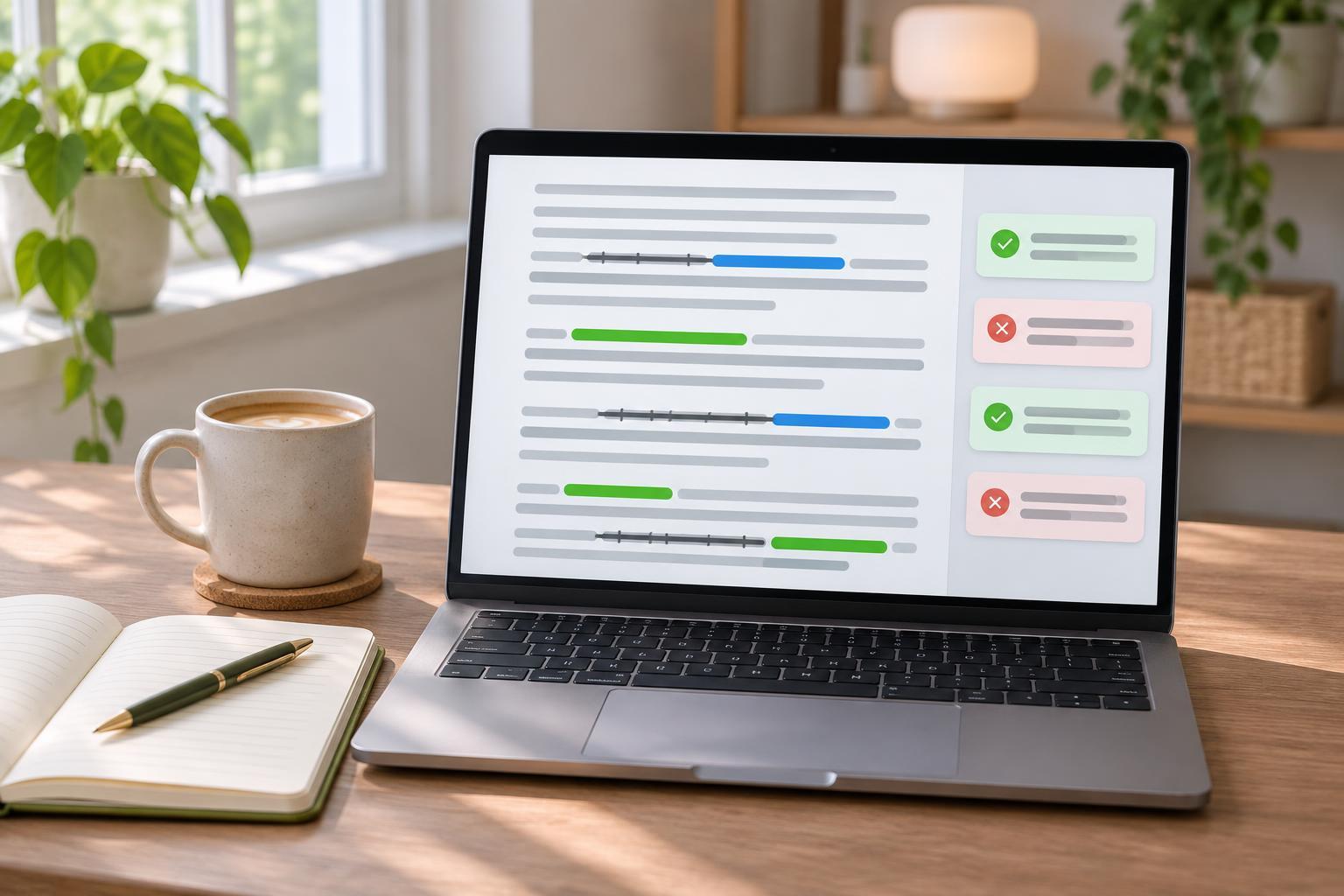
Google Docs suggesting mode lets you propose changes without rewriting someone else's text. Your edits appear as colored insertions and strikethroughs, and the document owner or an editor decides what stays. To review edits cleanly, switch the document to Suggesting mode, work through each change, and bulk-accept only after you've checked what's left.
Suggested edits launched in June 2014, according to Wikipedia's Google Docs entry. The feature itself is simple. The hard part is the workflow when several people are editing the same file, so this guide covers the steps, a safe way to accept changes in bulk, and a routine for documents with three or more reviewers.
How do you turn on Google Docs suggesting mode?
Look at the top-right corner of the toolbar. Click the mode dropdown, which usually says Editing, and choose Suggesting. From then on, anything you type is a suggestion rather than a direct change. Switch back to Editing when you want to change text directly, such as fixing a typo in your own draft.
Your access level decides whether you can suggest at all. Google's help page explains that people with comment or edit permission can suggest edits, and the owner decides which ones to keep. People with view-only access can read the document but can't propose changes. The official desktop steps from Google are the reference to bookmark.
What do suggestions look like on the page?
- Inserted text appears in a color tied to the reviewer, so you can see who wrote what.
- Deleted text stays on the page with a strikethrough, so the removed wording is still visible.
- A card in the margin shows each suggestion with accept and reject controls.
These markers are the whole point of suggesting mode. Nothing disappears until someone with the right access makes a decision. If a long draft with many markers feels crowded, try Google Docs Pageless Mode, which removes page breaks from the view so you can read more comfortably.
How do you accept or reject suggestions one at a time?
Click a suggestion, then choose the check mark to accept or the X to reject. Work from top to bottom so the document reads in order. After each decision, reread the sentence. One accepted change can alter the meaning of the next suggestion, so don't click through the list on autopilot.
How do you accept all suggestions without losing track?
Bulk accepting is the fastest option and the easiest one to regret. To see every pending change in one place, open Tools > Review suggested edits. The panel lists each suggestion, and it's where you'll use Accept all. Follow this routine first:
- Name the current version. Go to File > Version history > Name current version, and use a label such as 'Before bulk review, Round 2.'
- Skim the full list. Check names, numbers, dates, and legal wording first, because mistakes there are the most costly.
- Reject the disagreements one by one. Don't leave them for later, or they'll get mixed in with the changes you want.
- Accept all for the rest, then reread the document from top to bottom.
Don't count on a simple undo after a bulk accept. If you need to go back, restore your named version from File > Version history. Our guide on how to force a copy of your Google Docs explains how to keep a clean copy before a major edit.
Who should get Commenter access and who should get Editor?
The sharing dialog offers Viewer, Commenter, and Editor. There's no separate Suggester role, so suggesting is a mode that commenters and editors can both use. The real decision is who can accept changes, because editors can. That creates a tension when someone who signs off on the work, such as a manager approving a schedule, needs to give feedback but shouldn't change the text.
The simplest fix is one editor per document. Here's a permission matrix that works for most review teams:
| Role | Share access | Mode to use | What they can do |
|---|---|---|---|
| Final owner | Editor | Editing | Accepts and rejects suggestions and makes the final call |
| Contributors | Commenter | Suggesting | Propose wording changes that the owner decides on |
| Subject experts | Commenter | Comments | Flag facts and raise questions without touching the text |
| Approvers | Commenter | Comments | Give approval in writing without changing or accepting edits |
Keep editor access as narrow as you can. Every editor can accept changes, so each extra editor adds a way for a suggestion to slip through unreviewed.
Should you use suggestions, comments, or direct edits?
Each tool suits a different job:
- Direct edits are for fixes only the owner should make, such as formatting or changes to the owner's own draft.
- Suggestions propose wording changes to someone else's text and leave the final decision to the owner.
- Comments handle questions, objections, and anything that needs discussion rather than a text change.
Mixing all three is where review gets messy. When reviewers edit directly, it becomes hard to tell who made a decision. When they mix comments and edits for the same point, the history is harder to follow later. Keep the roles separate and the record stays readable.
How do you manage a document with three or more reviewers?
Run the review in rounds. Give each round a clear label in version history, such as 'Draft 2, Round 1,' and post a short instruction in the first comment so reviewers know what to do. A reviewer note can be as simple as this template:
- Round and version: which draft they're reviewing
- Suggest: wording changes, in Suggesting mode
- Comment on: facts to check, questions, or decisions needed
- Skip: sections that are already approved
Then set a daily processing rule. Clear suggestions once a day at a set time instead of letting them pile up. A long backlog is where accidental accepts and missed changes happen.
What happens when two reviewers edit the same sentence?
Google Docs shows each suggestion on its own, so two edits to one sentence can conflict. Don't accept whichever appears first or last. Choose the version that best serves the document's goal, accept it, and reject the other. Then leave a comment that says which version you chose and why. If neither version works, write the sentence yourself as a direct edit and tag both reviewers in a comment so they can see the decision.
How does mobile review differ?
On Android, the Google Docs Android help page describes the flow: tap the highlighted text, tap Suggestion, then choose Accept or Reject. That works well for a single change or a quick check on the go. For a long document with several reviewers, the desktop review panel is much faster to scan, so do your bulk decisions on a computer.
Frequently asked questions
How do I accept all suggestions in Google Docs?
Go to Tools > Review suggested edits, then click Accept all. Name the current version first so you can return to it if something goes wrong.
How do I turn off Suggesting mode?
Click the mode dropdown in the top-right corner and select Editing. Anything you type after that is a direct change.
Can I suggest edits without edit access?
Yes. Commenter access is enough to suggest edits. The owner or an editor decides which suggestions to keep.
Does the document owner get notified about suggestions?
Yes. Google's help page says the owner receives an email about suggestions and decides whether to keep them.
Can I undo an Accept all?
Don't count on a simple undo. Open File > Version history and restore the named version you saved before the bulk accept.
The takeaway
Turn on Suggesting mode, give each person the access that matches their job, and run reviews in labeled rounds. Accept changes in bulk only after you've named a version and rejected the disagreements. At 3minread, we treat Accept all as the last step in the process, not the first click. Do that, and the document ends with one clear set of decisions.