3 min read
TAKE A BREAK
How to Remove Duplicates in Google Sheets: 3 Methods Compared
Updated: 10/19/2026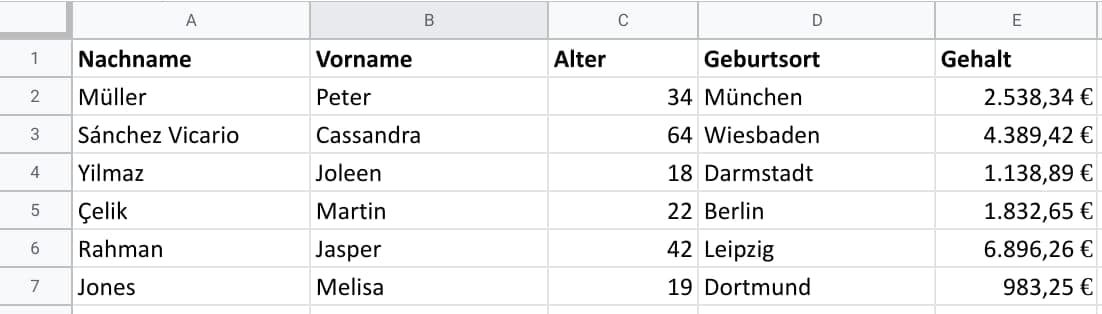
Google Sheets-Kochbuch-Beispieltabelle 1 Photo by SoylentGreen · CC0
Knowing how to remove duplicates in Google Sheets takes about a minute once you pick the right method. The quickest route is Data > Data cleanup > Remove duplicates, which deletes repeat rows in place. If you want to keep your original data untouched, the UNIQUE formula builds a clean copy instead. For cleanups you repeat every week, a short Apps Script does the job with one click. Below, we compare all three on speed, reversibility, and whether they keep the original row order.
Quick comparison: three methods side by side
| Method | Speed | Reversible? | Keeps original order? | Best for |
|---|---|---|---|---|
| Data cleanup > Remove duplicates | Fastest for a one-time cleanup | Partly: Undo works right away, and version history is the safer fallback | Yes, the first occurrence of each row stays | Cleaning a copy of a sheet in place |
| UNIQUE formula | Instant to set up, updates automatically | Yes, the source data never changes | Yes, first-seen order | Keeping raw data and a clean list side by side |
| Apps Script | Slowest to set up, one click to repeat | Only if you back up first | Yes, with the sample below | Repeat cleanups and custom rules |
Use the table as a starting point. The right choice depends on whether you need to delete rows, keep the raw data, or repeat the same cleanup often.
Before you start: what counts as a duplicate
Duplicates are rows whose values match. Google's help documentation for splitting text, removing duplicates, and trimming whitespace explains how the Data cleanup tools handle them. Four details trip people up most often.
First is spacing. Sheets treats 'Smith' and 'Smith ' (with a trailing space) as different values, so the cleanup will skip the second one. Run Data > Data cleanup > Trim whitespace on the column first.
Second is case. Decide whether ADA and Ada should count as the same person or product in your data. If they should, add a helper column with =LOWER(A2), fill it down, and clean that column instead.
Third is selection. Make sure your range includes every column you care about. If you clean only column A but your rows differ in column C, you may remove rows you meant to keep.
Fourth is backup. Right-click the sheet tab and choose Duplicate. You now have a safety copy to compare against if anything goes wrong.
If you want to review duplicates before deleting anything, add a helper column. In a single-column list, enter =COUNTIF($A$2:A2,A2) in cell B2 and fill it down. Any value above 1 is a repeat. Filter for values greater than 1 and check them by eye.
Duplicates often start at data entry. If people type the same values in different ways, a dropdown list keeps entries consistent. If your data arrives from a survey, our Google Forms guide shows how to set up responses so fewer repeats slip in.
Method 1: Use the built-in Remove duplicates tool
This is the fastest way to clean a sheet once. Follow these steps:
- Select your data, including the header row.
- Go to Data > Data cleanup > Remove duplicates.
- Tick Data has header row if the first row contains labels. This stops Sheets from treating your headings as data.
- Choose the columns to compare. With all columns ticked, only rows that match in every column are removed.
- Click Remove duplicates. Sheets deletes the repeats and reports how many rows were removed and how many remain.
Column choice changes the result. Imagine a mailing list where the same email address appears in two rows with different first names. If you compare only the Email column, the second row goes. If you compare Email and First name, both rows stay.
Three things to know before you click:
- There is no preview. Duplicates are removed as soon as you confirm.
- Ctrl+Z (Cmd+Z on a Mac) usually reverses the change if you act right away. After you make other edits, use File > Version history > See version history to restore an earlier state.
- Selecting a single cell inside a range can apply the tool to the whole range, so highlight the exact block you want to clean.
The first occurrence of each repeated row stays where it is, so the order of what remains matches the order you started with.
Method 2: Use the UNIQUE formula to keep your original data
If you want a clean list without deleting anything, use UNIQUE. The function returns distinct rows from a range and leaves the source data unchanged. It reads from the top down, keeps the first instance of each row, and preserves the order those rows first appeared. Ben Collins's UNIQUE function guide covers the syntax and behavior in more depth.
Try these formulas in an empty area of your sheet:
- =UNIQUE(A2:C) returns each distinct row across columns A to C.
- =UNIQUE(A2:A) returns distinct values from one column.
- =UNIQUE(A2:B) compares two columns together, so a row counts as a duplicate only when both columns match.
Some practical notes:
- The output spills into the cells below. If anything sits in those cells, you get a #REF! error, so place the formula on a blank sheet or leave space beneath it.
- The result updates automatically when the source data changes. You don't need to rerun anything.
- To sort the output, wrap the formula in SORT, such as =SORT(UNIQUE(A2:C)).
- UNIQUE takes the formatting from the first matching value it finds. If the same number appears in different formats, the first format wins.
- If you want static values rather than a live formula, copy the output and paste it with Edit > Paste special > Values only.
Reversibility is the main strength here. Deleting the formula returns your sheet to its original state, and the source data never changes.
Method 3: Use a simple Apps Script
When you clean the same sheet every week, or you need rules the built-in tool can't handle, Apps Script is worth the setup time. Google's Apps Script quickstart documentation covers the platform basics. Martin Hawksey's guide to removing duplicate rows with Apps Script walks through two approaches, including the Range.removeDuplicates() method that Apps Script has offered since 2019.
Here is a short script that keeps the first occurrence of each row, in its original order:
function removeDuplicateRows() {
  const sheet = SpreadsheetApp.getActiveSheet();
  const values = sheet.getDataRange().getValues();
  const seen = new Set();
  const unique = [];
  values.forEach(row => {
    const key = JSON.stringify(row);
    if (!seen.has(key)) {
      seen.add(key);
      unique.push(row);
    }
  });
  sheet.clearContents();
  sheet.getRange(1, 1, unique.length, unique[0].length).setValues(unique);
}
To run it, open Extensions > Apps Script, paste the code, save, and click Run. The first time, Google asks you to authorize the script to access your spreadsheet.
Read this before you run it. The script reads all the data, removes repeats in memory, clears the sheet, and writes the unique rows back. That is the same approach as Google's sample, so it rewrites the sheet rather than deleting rows one by one. Make a duplicate of the tab first. The script also compares cell values, not formatting, so rows that look alike but hold different underlying values stay separate.
Dates need a check. Some common scripts that build a unique array drop date values, a caveat Hawksey raises in his guide. The script above keeps the values it reads, but check your date columns after every run.
If your sheet is large enough to run into size limits, our guide to Google Sheets' 10 Million Cell Limit explains what to watch for.
Which method should you choose?
Each method trades something off. The built-in tool is the quickest for a one-time cleanup, but it changes the sheet in place, so your protection is the copy you made beforehand. UNIQUE is the safest because it never touches your source, but it creates a second range you have to keep track of. Apps Script is the most flexible and repeatable, but it takes the longest to set up, and a bug can rewrite a lot of data at once.
Use this as a quick decision guide:
- Pick Remove duplicates for a one-off cleanup of a copy.
- Pick UNIQUE when you need the raw data kept and a live list that updates.
- Pick Apps Script when you clean the same sheet regularly or need custom behavior.
On speed, the built-in tool is quickest to execute, and UNIQUE is quick to set up. The script takes the most time up front and then runs in a single click. Choose the method that matches how often you'll do the work, not just the one that looks fastest the first time.
Common mistakes to avoid
- Forgetting the header row, so a label gets treated as data or removed.
- Comparing the wrong columns and deleting rows you meant to keep.
- Running a destructive step without a copy or version history to fall back on.
- Placing UNIQUE output where it collides with existing data.
Frequently asked questions
Can Google Sheets remove duplicates based on two columns?
Yes. In the Remove duplicates dialog, tick only the two columns you want to compare. For a formula version, use =UNIQUE(A2:B).
Does UNIQUE update automatically?
Yes. When the source data changes, the UNIQUE result recalculates without any action from you.
Can I sort the unique results?
Yes. Wrap the formula in SORT, for example =SORT(UNIQUE(A2:C)).
Can I remove duplicates on my phone?
You can view sheets on a phone, but use a desktop browser for cleanup tasks. The Data menu options are easiest to find and check there, so open the file on a computer before you start.
The takeaway
Start with Data > Data cleanup > Remove duplicates for a quick one-time fix on a copy. Use UNIQUE when you need your original data kept, and Apps Script when the cleanup repeats. Check spacing, case, and columns first, and keep a backup. For more quick Sheets walkthroughs, browse our Tech coverage at 3minread.